
|
Zenix |
The Crystal City |
|
|
|
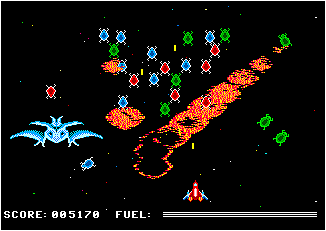
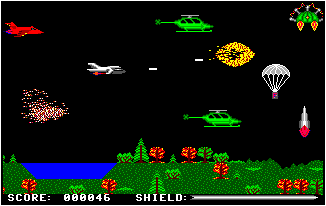
In the late 80’s, I wrote two video games. The first was called Zenix and was released in 1989. The second was called The Crystal City, and was released in 1990. “Zenix was one of the most ambitious 128K Coco 3 games done, at least until the same author came out with The Crystal City a year later.” See the review of The Crystal City. Watch Madgun68 play the original version of Zenix. Watch Marlinlee play the original version of the Crystal City.
Emulating Zenix and Crystal City
-
Download MessUI version 0.203 from http://messui.1emulation.com or http://www.progettosnaps.net/messui
-
Extract it to your hard drive, keeping the directory structure (7-zip can be used to extract)
- Open ZenixAndCrystalCity (right click… open in new window)
- Copy the coco3 folder into them MessUI roms folder, and the other files into the software folder
-
Double click mess64.exe or mess32.exe
- In the search box, type “Color” then double click “Color Computer 3 (NTSC)“. If you get an error, you probably need to review step 3 and 4
- Double click “Start Empty“, then press enter to see the green Coco screen
- Select Options… Video… RGB to get the proper colors
Running Zenix
-
Click Media… Floppy #1… Mount File. Select Zenix.dsk
-
On the green Coco screen, type loadm”zenix, and press enter. NOTE: To make a quote (“), press the shifted 2 key.
-
After Zenix loads, you can press the joystick “shoot” key, to start playing at level 1, or you can press the number keys as follows: 1) Start at level four, 2) Start at level eight, 3) Start at level twelve, 4) Start at level sixteen.
-
To stop playing, click Options…Hard Reset
Running Crystal City
PLEASE NOTE: The boss ships at the end of the levels are partially invisible. This is an error in the emulator, and does not happen on the actual CoCo 3 hardware. If your computer is not fast enough the game can run at half speed. If this happens, try shrinking the emulator window.
-
Click Media… Floppy #1… Mount File. Select Crystal.dsk.
-
On the green Coco screen, type loadm”crystal, and press enter. NOTE: To make a quote (“), press the shifted 2 key.
-
When it it says, “INSERT “LEVELS” DISK”, click Media… Floppy #1… Mount File. Select Levels.dsk. Then press enter.
-
After the Crystal City loads, you can press the joystick “shoot” key, to start playing at level 1, or you can press the number keys as follows: 1) Start at level one, 2) Start at level two, 3) Start at level three.
-
To stop playing, click Options…Hard Reset